> ## Documentation Index
> Fetch the complete documentation index at: https://guide.upcharq.com/llms.txt
> Use this file to discover all available pages before exploring further.
# Patient Quick Start
> Book appointments and track your queue on Upchar-Q.
## Welcome to Upchar-Q!
Upchar-Q helps you find nearby doctors and hospitals, book appointments instantly, and track your position in the queue in real time - so you spend less time waiting and more time focusing on your health.
**Estimated Setup Time:** 3–5 minutes
## Step 1: Download the Upchar-Q App
To get started, download the UpcharQ mobile application.
For Android devices
For iPhone devices
Search for **Upchar-Q** and install the application on your device. Once installed, open the app and tap **Get Started**.
## Step 2: Verify Your Mobile Number
Upchar-Q uses your mobile number as your primary account identifier.
Enter your mobile number and tap **Continue**.
Enter the One-Time Password (OTP) received via SMS.
Tap **Verify OTP**.
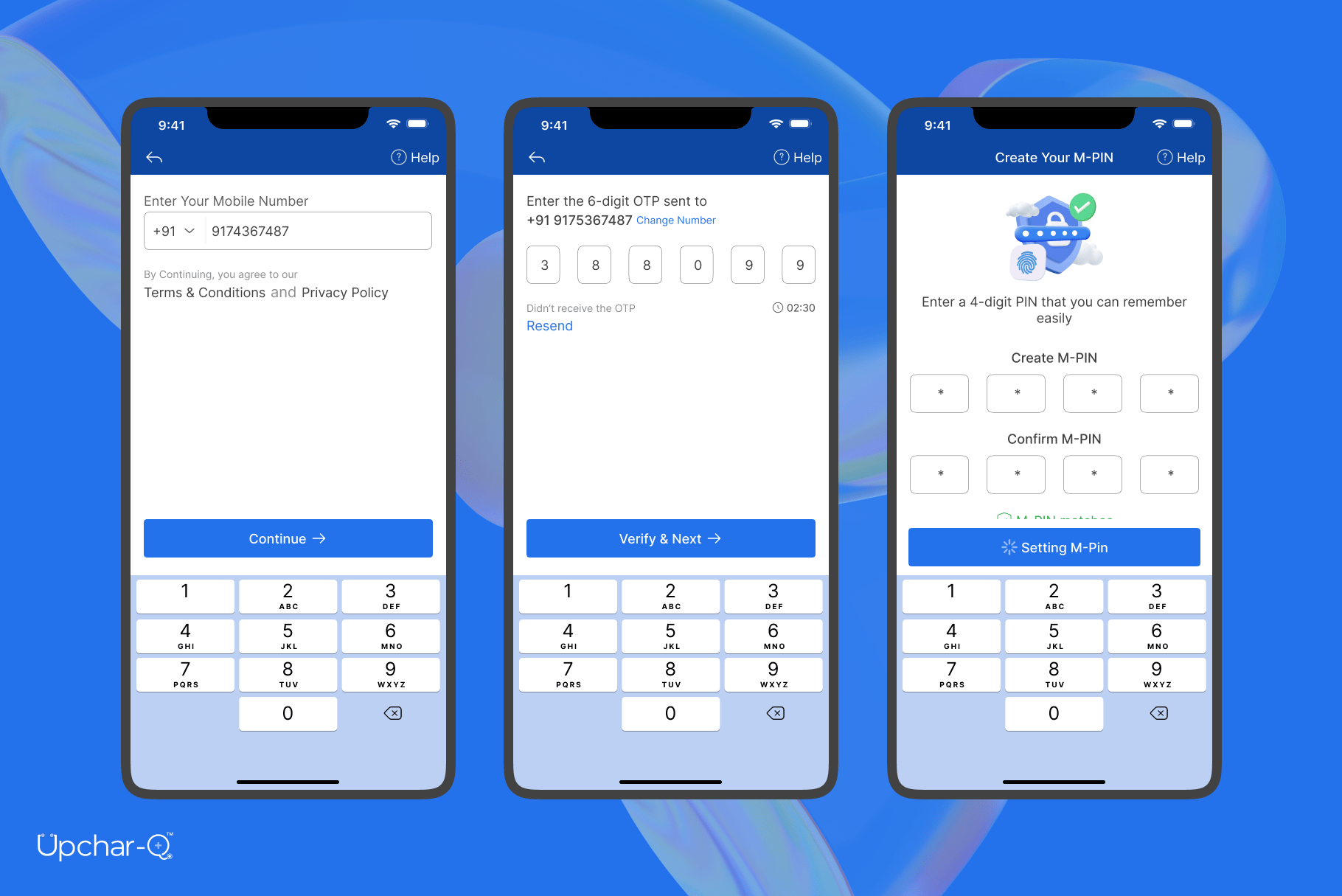 Once verified, your account will be created automatically.
## Step 3: Complete Your Profile
To personalize your experience and help healthcare providers identify you correctly, complete your basic profile information.
### Required Information
* **Full Name**
* **Date of Birth**
* **Gender**
Review your details and tap **Continue**.
Once verified, your account will be created automatically.
## Step 3: Complete Your Profile
To personalize your experience and help healthcare providers identify you correctly, complete your basic profile information.
### Required Information
* **Full Name**
* **Date of Birth**
* **Gender**
Review your details and tap **Continue**.
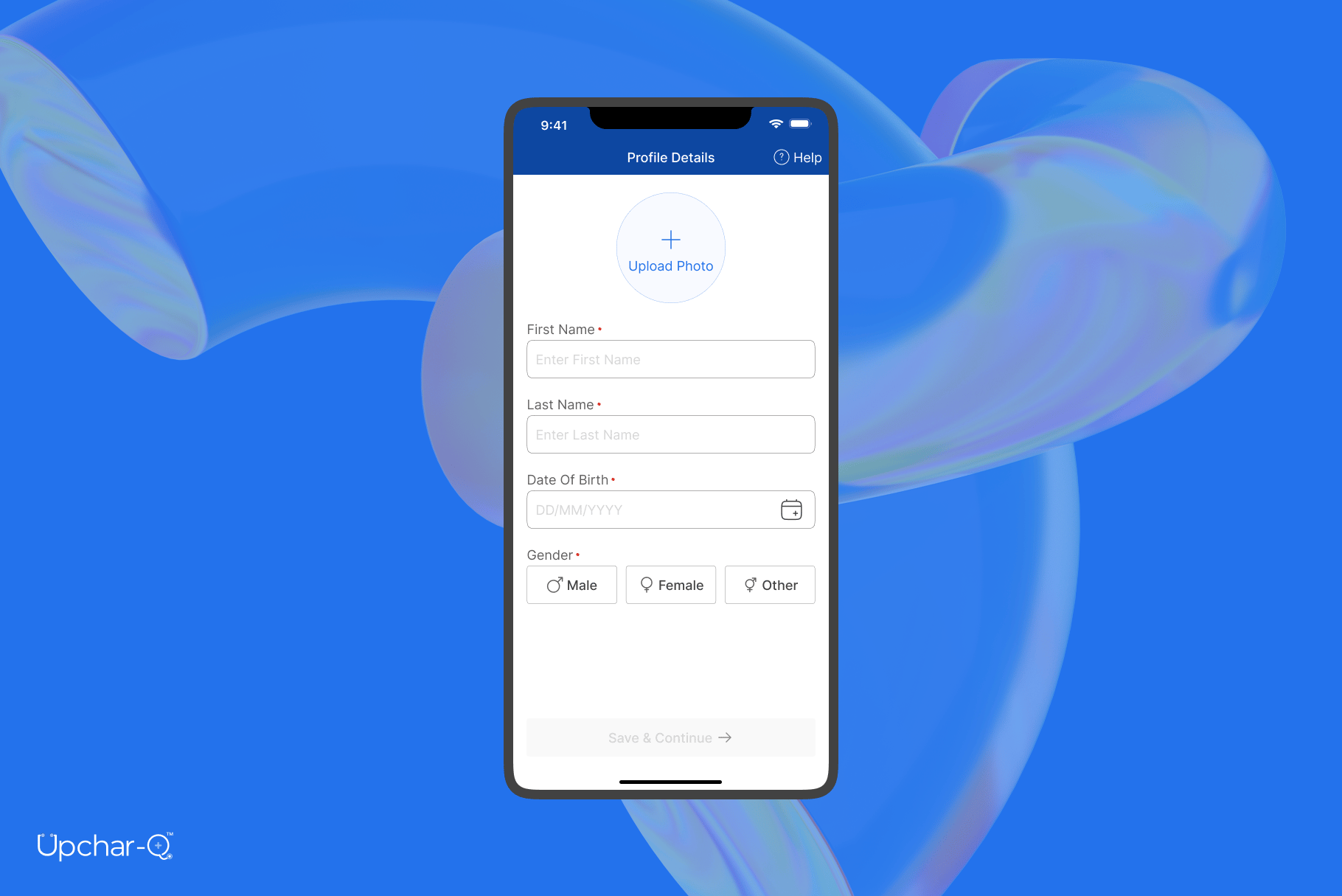 Your profile setup is now complete.
## Step 4: Explore Healthcare Services Near You
After onboarding, you will be redirected to the **Explore** section. To receive personalized recommendations, allow **location access** when prompted.
### Why Enable Location?
Location access helps Upchar-Q:
* Recommend nearby doctors
* Suggest nearby hospitals and clinics
* Display accurate healthcare options around you
* Improve appointment discovery
Your profile setup is now complete.
## Step 4: Explore Healthcare Services Near You
After onboarding, you will be redirected to the **Explore** section. To receive personalized recommendations, allow **location access** when prompted.
### Why Enable Location?
Location access helps Upchar-Q:
* Recommend nearby doctors
* Suggest nearby hospitals and clinics
* Display accurate healthcare options around you
* Improve appointment discovery
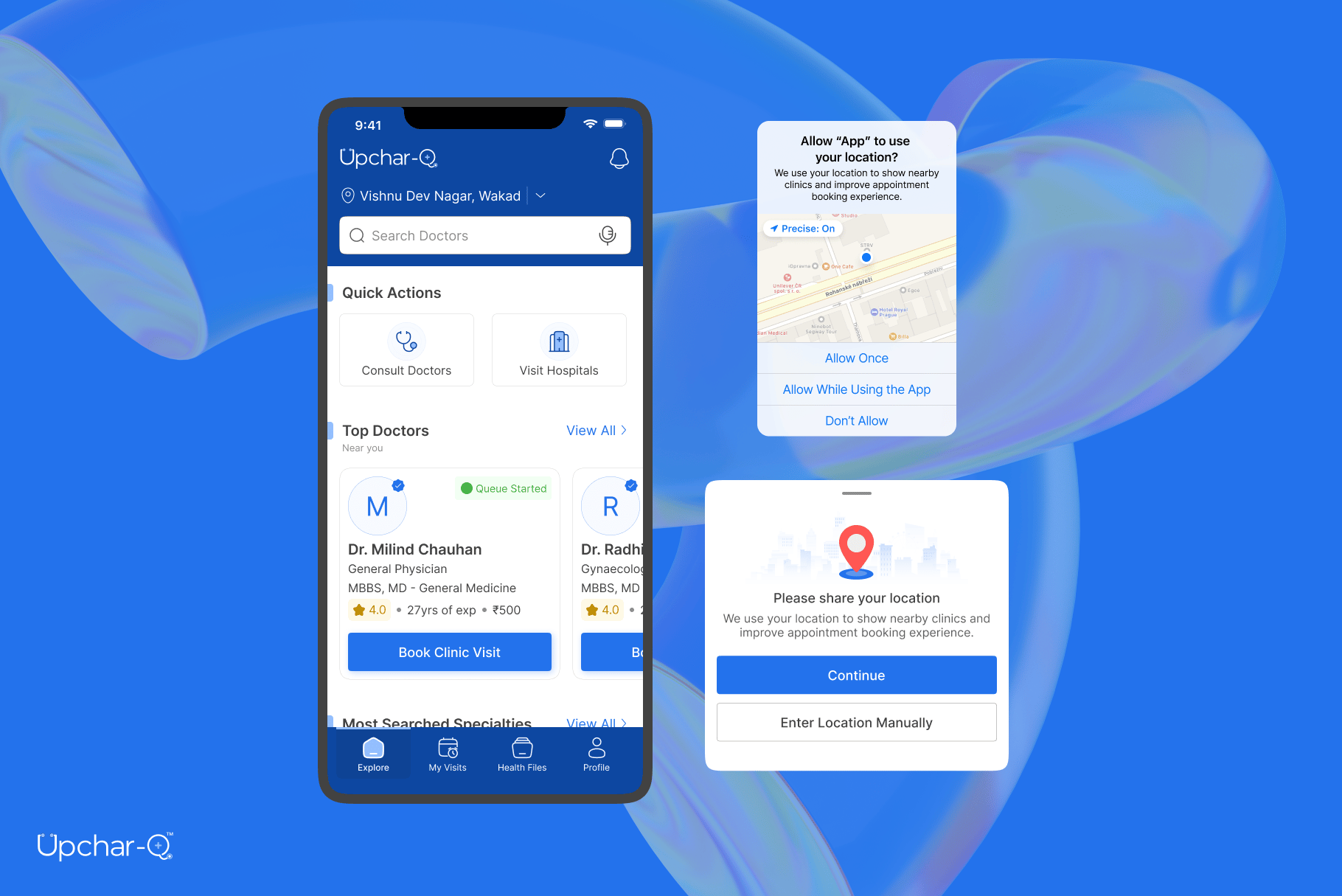 You can update location permissions at any time through your device settings.
## Step 5: Discover Doctors and Hospitals
The **Home** screen is designed to help you quickly find the right healthcare provider.
### Search Doctors & Hospitals
Use the search bar to find:
* Doctors
* Hospitals
* Clinics
* Specialties
### Nearby Doctors
Browse doctors located near your current location.
### Search by Specialty
Find specialists such as:
* General Physician
* Dentist
* Pediatrician
* Gynecologist
* Orthopedic Surgeon
* Dermatologist
* Cardiologist
### Search by Symptoms
Not sure which specialist to consult? Search using symptoms such as:
* Fever
* Cough
* Headache
* Back Pain
* Skin Rash
* Stomach Pain
Upchar-Q will recommend the most relevant specialists.
### Nearby Hospitals
View hospitals and clinics around you, along with their available doctors and consultation schedules.
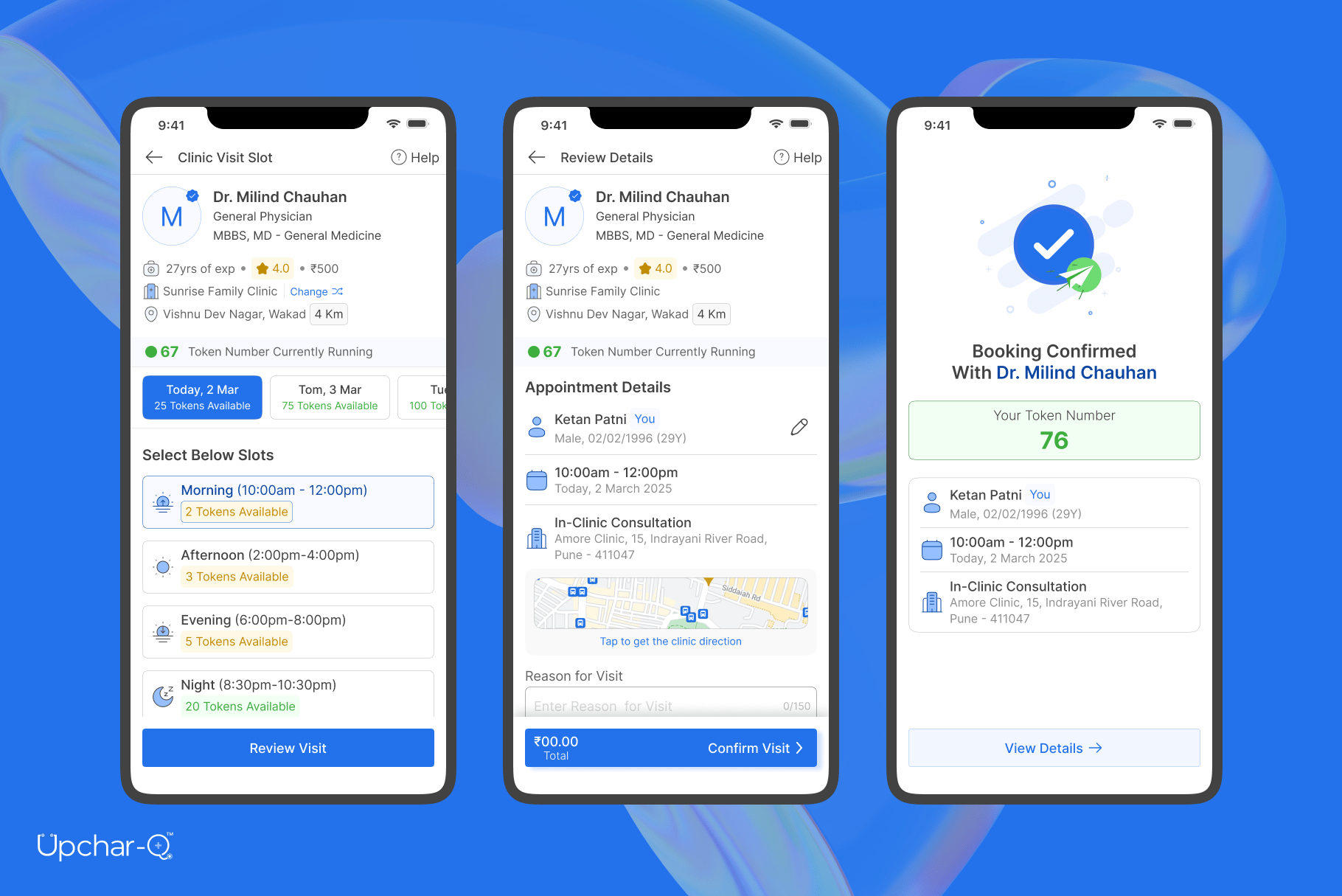
## Step 6: Book an Appointment
Booking an appointment takes just a few simple steps.
Open any doctor profile, review the doctor's information and availability, then tap **Book Appointment**.
Select an available consultation session based on your preferred time. Available sessions may include:
* Morning Sessions
* Afternoon Sessions
* Evening Sessions
Review the details and tap **Confirm Visit** to proceed:
* Doctor Details
* Hospital/Clinic Information
* Appointment Date
* Session Timing
## Step 7: Complete Platform Fee Payment
To secure your appointment, a small platform fee may apply.
### Payment Process
1. Review payment details.
2. Select your preferred payment method.
3. Complete the payment securely.
Once payment is successful, your appointment will be confirmed instantly.
## Step 8: Receive Your Token Number
After successful booking:
* ✅ Your appointment is **confirmed**
* ✅ A unique **token number** is generated
* ✅ You are automatically added to the **doctor's queue**
* ✅ Your **queue position** is displayed in real time
## Step 9: Track Your Queue Live
No more waiting rooms and uncertainty. Using Upchar-Q, you can:
* View your current queue position
* Monitor patient progress ahead of you
* Receive real-time queue updates
* Get notified when your turn is approaching
This helps you arrive at the right time and reduce unnecessary waiting.
You can update location permissions at any time through your device settings.
## Step 5: Discover Doctors and Hospitals
The **Home** screen is designed to help you quickly find the right healthcare provider.
### Search Doctors & Hospitals
Use the search bar to find:
* Doctors
* Hospitals
* Clinics
* Specialties
### Nearby Doctors
Browse doctors located near your current location.
### Search by Specialty
Find specialists such as:
* General Physician
* Dentist
* Pediatrician
* Gynecologist
* Orthopedic Surgeon
* Dermatologist
* Cardiologist
### Search by Symptoms
Not sure which specialist to consult? Search using symptoms such as:
* Fever
* Cough
* Headache
* Back Pain
* Skin Rash
* Stomach Pain
Upchar-Q will recommend the most relevant specialists.
### Nearby Hospitals
View hospitals and clinics around you, along with their available doctors and consultation schedules.
## Step 6: Book an Appointment
Booking an appointment takes just a few simple steps.
Open any doctor profile, review the doctor's information and availability, then tap **Book Appointment**.
Select an available consultation session based on your preferred time. Available sessions may include:
* Morning Sessions
* Afternoon Sessions
* Evening Sessions
Review the details and tap **Confirm Visit** to proceed:
* Doctor Details
* Hospital/Clinic Information
* Appointment Date
* Session Timing
## Step 7: Complete Platform Fee Payment
To secure your appointment, a small platform fee may apply.
### Payment Process
1. Review payment details.
2. Select your preferred payment method.
3. Complete the payment securely.
Once payment is successful, your appointment will be confirmed instantly.
## Step 8: Receive Your Token Number
After successful booking:
* ✅ Your appointment is **confirmed**
* ✅ A unique **token number** is generated
* ✅ You are automatically added to the **doctor's queue**
* ✅ Your **queue position** is displayed in real time
## Step 9: Track Your Queue Live
No more waiting rooms and uncertainty. Using Upchar-Q, you can:
* View your current queue position
* Monitor patient progress ahead of you
* Receive real-time queue updates
* Get notified when your turn is approaching
This helps you arrive at the right time and reduce unnecessary waiting.
 ## What Happens Next?
Once your consultation is completed, you can continue using Upchar-Q to:
* Book future appointments
* Discover new healthcare providers
* Track upcoming visits
* Manage your healthcare journey conveniently from one place
## Need Help?
If you experience any issues:
* Verify your mobile number is active.
* Ensure location permissions are enabled for accurate recommendations.
* Contact the **Upchar-Q Support Team** for assistance.
***
*Thank you for choosing Upchar-Q.* **Smarter Appointments. Shorter Wait Times. Better Healthcare Experiences.**
## What Happens Next?
Once your consultation is completed, you can continue using Upchar-Q to:
* Book future appointments
* Discover new healthcare providers
* Track upcoming visits
* Manage your healthcare journey conveniently from one place
## Need Help?
If you experience any issues:
* Verify your mobile number is active.
* Ensure location permissions are enabled for accurate recommendations.
* Contact the **Upchar-Q Support Team** for assistance.
***
*Thank you for choosing Upchar-Q.* **Smarter Appointments. Shorter Wait Times. Better Healthcare Experiences.**