

Welcome to Upchar-Q!
Upchar-Q helps you find nearby doctors and hospitals, book appointments instantly, and track your position in the queue in real time - so you spend less time waiting and more time focusing on your health.Estimated Setup Time: 3–5 minutes
Step 1: Download the Upchar-Q App
To get started, download the UpcharQ mobile application.Google Play Store
For Android devices
Apple App Store
For iPhone devices
Step 2: Verify Your Mobile Number
Upchar-Q uses your mobile number as your primary account identifier.1
Enter Mobile Number
Enter your mobile number and tap Continue.
2
Enter OTP
Enter the One-Time Password (OTP) received via SMS.
3
Verify
Tap Verify OTP.
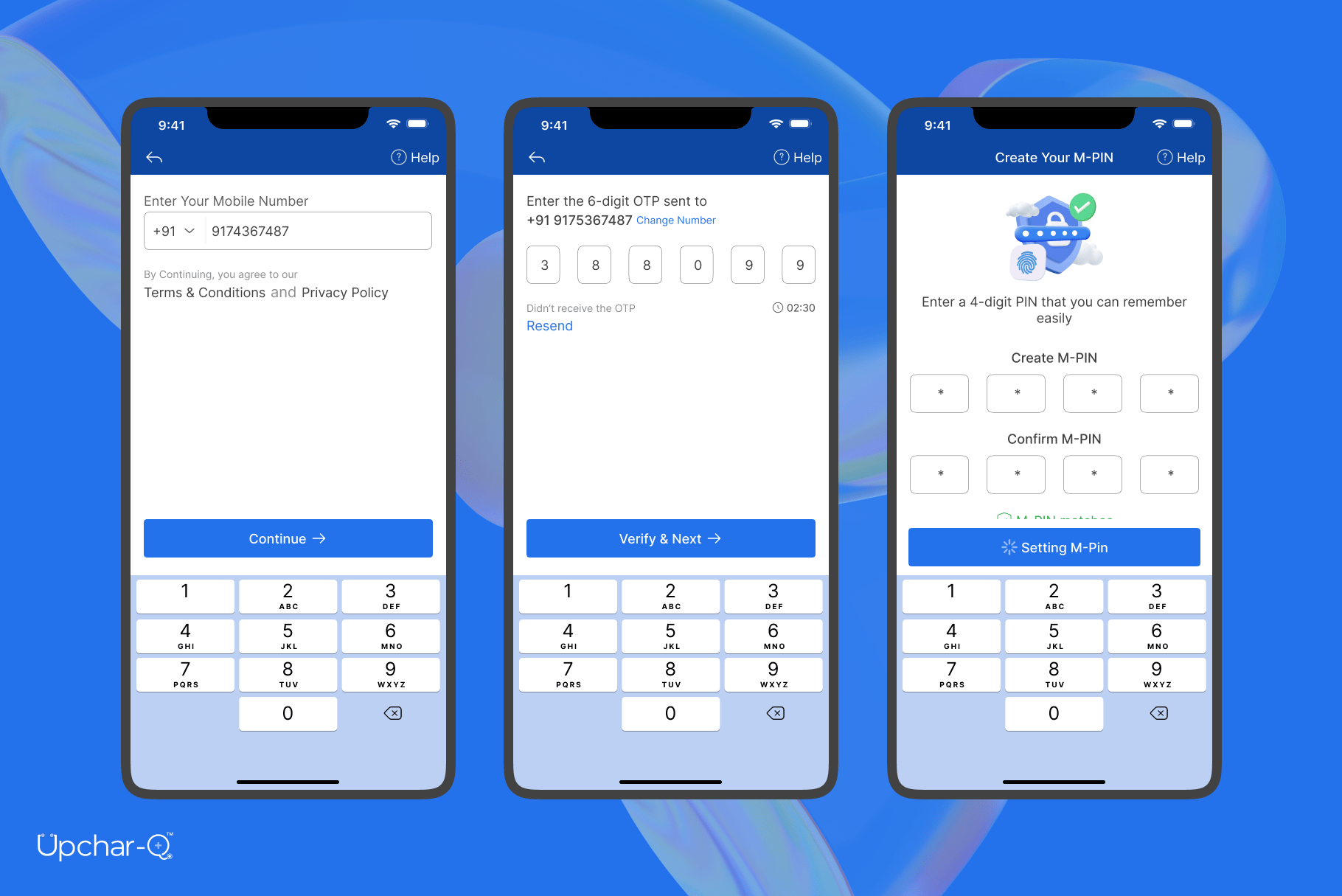
Once verified, your account will be created automatically.
Step 3: Complete Your Profile
To personalize your experience and help healthcare providers identify you correctly, complete your basic profile information.Required Information
- Full Name
- Date of Birth
- Gender
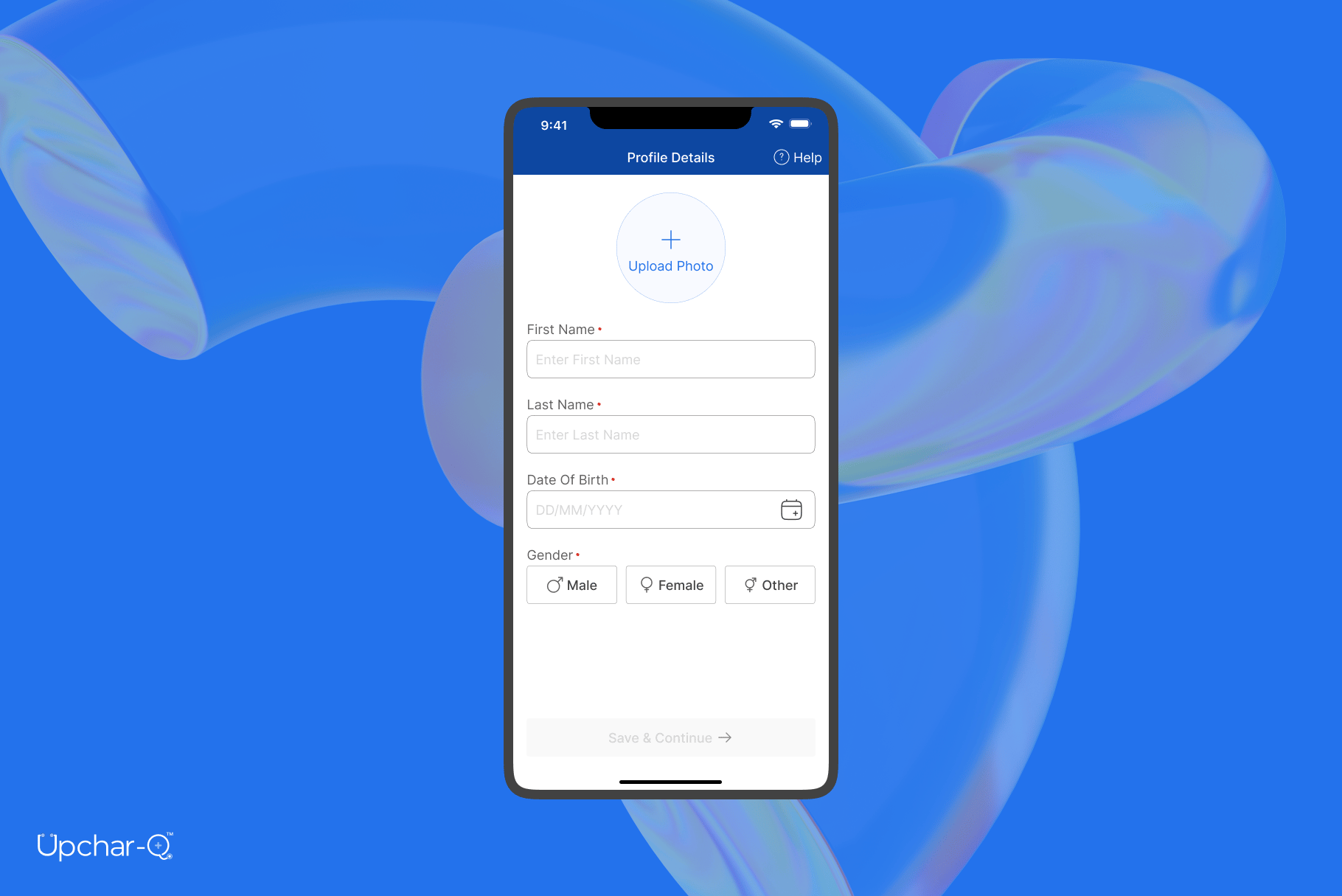
Your profile setup is now complete.
Step 4: Explore Healthcare Services Near You
After onboarding, you will be redirected to the Explore section. To receive personalized recommendations, allow location access when prompted.Why Enable Location?
Location access helps Upchar-Q:- Recommend nearby doctors
- Suggest nearby hospitals and clinics
- Display accurate healthcare options around you
- Improve appointment discovery
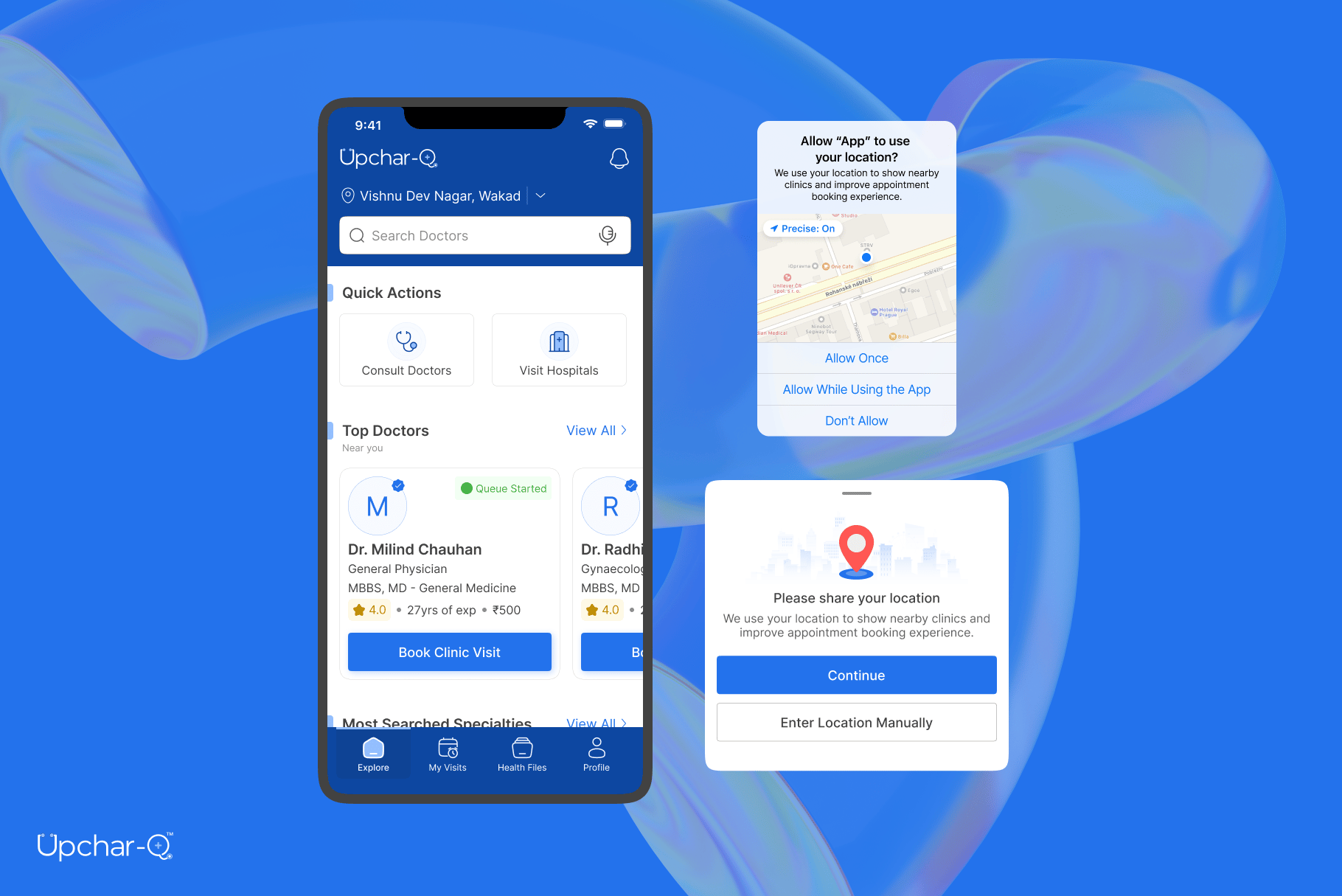
You can update location permissions at any time through your device settings.
Step 5: Discover Doctors and Hospitals
The Home screen is designed to help you quickly find the right healthcare provider.Search Doctors & Hospitals
Use the search bar to find:- Doctors
- Hospitals
- Clinics
- Specialties
Nearby Doctors
Browse doctors located near your current location.Search by Specialty
Find specialists such as:- General Physician
- Dentist
- Pediatrician
- Gynecologist
- Orthopedic Surgeon
- Dermatologist
- Cardiologist
Search by Symptoms
Not sure which specialist to consult? Search using symptoms such as:- Fever
- Cough
- Headache
- Back Pain
- Skin Rash
- Stomach Pain
Nearby Hospitals
View hospitals and clinics around you, along with their available doctors and consultation schedules.Step 6: Book an Appointment
Booking an appointment takes just a few simple steps.1
Select a Doctor
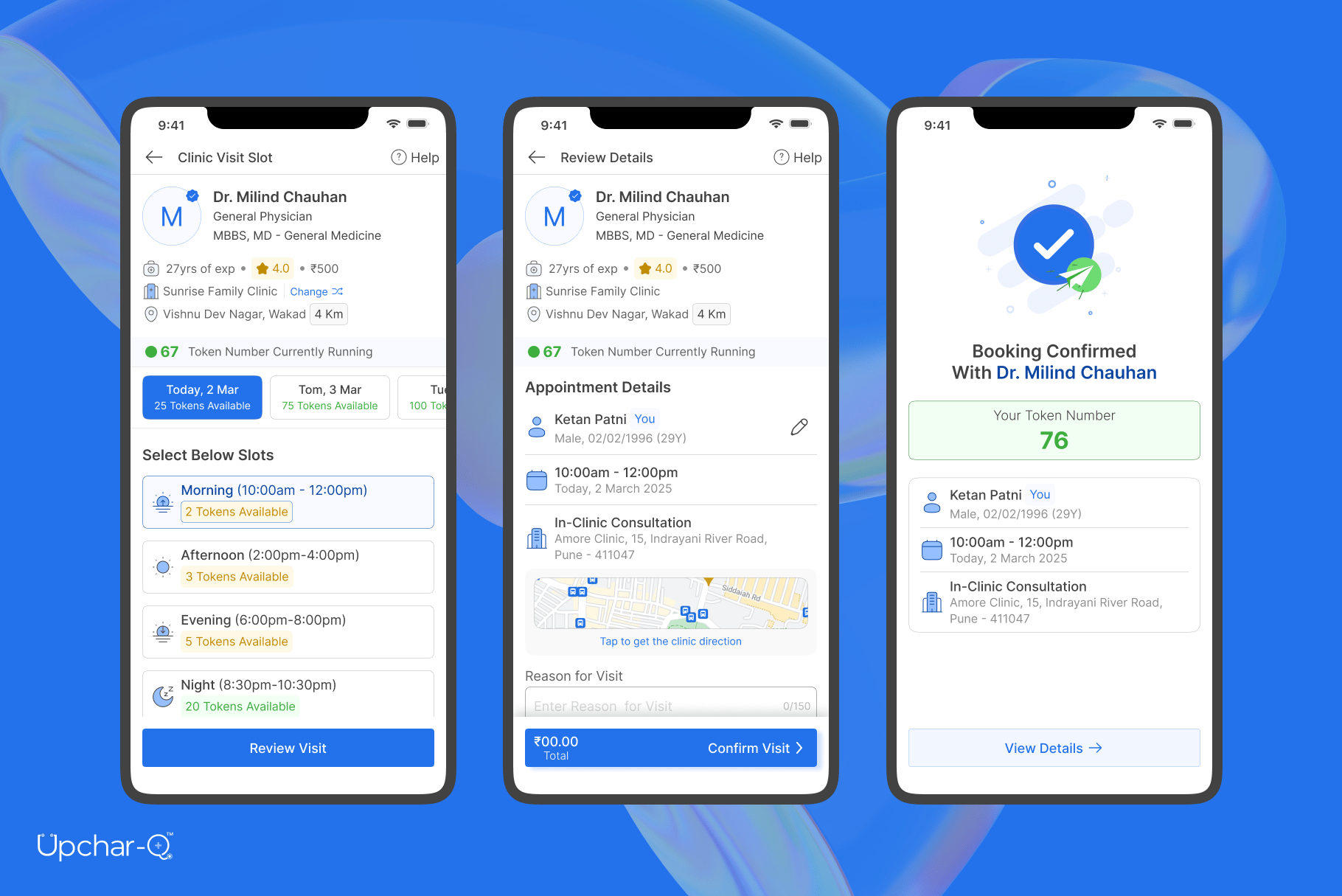
Open any doctor profile, review the doctor’s information and availability, then tap Book Appointment.
2
Choose a Session
Select an available consultation session based on your preferred time. Available sessions may include:
- Morning Sessions
- Afternoon Sessions
- Evening Sessions
3
Confirm Your Visit
Review the details and tap Confirm Visit to proceed:
- Doctor Details
- Hospital/Clinic Information
- Appointment Date
- Session Timing
Step 7: Complete Platform Fee Payment
To secure your appointment, a small platform fee may apply.Payment Process
- Review payment details.
- Select your preferred payment method.
- Complete the payment securely.
Once payment is successful, your appointment will be confirmed instantly.
Step 8: Receive Your Token Number
After successful booking:- ✅ Your appointment is confirmed
- ✅ A unique token number is generated
- ✅ You are automatically added to the doctor’s queue
- ✅ Your queue position is displayed in real time
Step 9: Track Your Queue Live
No more waiting rooms and uncertainty. Using Upchar-Q, you can:- View your current queue position
- Monitor patient progress ahead of you
- Receive real-time queue updates
- Get notified when your turn is approaching
What Happens Next?
Once your consultation is completed, you can continue using Upchar-Q to:- Book future appointments
- Discover new healthcare providers
- Track upcoming visits
- Manage your healthcare journey conveniently from one place
Need Help?
If you experience any issues:- Verify your mobile number is active.
- Ensure location permissions are enabled for accurate recommendations.
- Contact the Upchar-Q Support Team for assistance.
Thank you for choosing Upchar-Q. Smarter Appointments. Shorter Wait Times. Better Healthcare Experiences.